Why run a new PowerShell script in a new PowerShell process like this? You’d be better off using the call operator (&) to invoke the script, then you can try/catch it like any other function.
Help! Tried using the new 4.1 PSADT template both from Master Packager/Wrapper AND from the raw toolkit download (in case there was a problem with Master packager version) but both will no longer launch - like nothing, no errors, no command windows coming up - nothing. The same installer using version 4.0 runs without problem. Is version 4.1 totally crap? I was looking forward to the no longer using serviceUI etc... but thing won't even launch my installer anymore.
When you say "won't even launch my installer anymore", do you mean the toolkit is running and appearing, but your installer you're running via Start-ADTProcess is not interactive or visible when you expect it to be?
I mean, absolutely nothing launches, not the UI (which I made interactive), I don't even think PS is invoked - if there is a script error running it from PS ISE window shows the error - I get absolutely nothing. Thought it might be my enterprise environment blocking it - but checked the Cortex AV and nothing trapped - I then attempted on a test machine not on our domain (so not getting GPO's etc...) Intune managed, same thing.
It's like the PSADT kit itself is not being invoked at all... very strange... when I launch with previous version of PSADT not such problem.
Checked my windows event viewer too, obvious things like Applocker and other windows logs showed nothing related to invoke process... I mean at least the PSADT shell should start right? Nothing...
If I attempt to run Invoke-AppdeployToolkit.exe from the Task manager - he flashes up for less than a second then disappears... nothing else happens.
I'd be opening a command prompt and running powershell.exe -File Invoke-AppDeployToolkit.ps1 and seeing exactly what's being said in the console. If you've got problems, the first thing to do is abandon the exe as it's not going to show you a thing.
Is version 4.1 totally crap?
I'd appreciate it also if you could watch the tone of your messages, especially as a first time poster as it's incredibly disrespectful to people like myself who have work on this project for free in their spare time.
We'll get to the bottom of whatever's wrong for you, but let's do it nicely.
Yep, ran the script and found the problem: I used the wrong syntax for the close process, as soon as I corrected that it was installing/uninstalling normally. Tested again with the exe and it executed. That's curious behaviour just from one line of wrong syntax.
There's not much more that can be done if the script can't be parsed/ran at all. We also can't have the exe show any dialogs for this stuff as without ServiceUI, you'd never see the dialog anyway; nor should the user see it at all in a production environment IMHO.
Because you're just invoking a script file that requires no extra arguments, this is all you need to do. Everything in your $arguments array is for powershell.exe, not for your actual script file.
When I run Invoke-AppDeployToolkit.exe with Dell Command Update running I get the notification to close Dell Command Update. I get a log file in C:\Windows\Logs\Software
When I run Invoke-AppDeployToolkitOLD.ps1 with Dell Command Update running I get the notification to close Dell Command Update. I get a log file in C:\Windows\Logs\Software
In the log I see: Dell Command Update found at: C:\Program Files\Dell\CommandUpdate\dcu-cli.exe ERROR: Failed to access Task Sequence environment variables.
So I know the script biosDCU.ps1 is running.
When I run it in a task sequence with Dell Command Update running I do not get the notification to close Dell Command Update. I do not get log files in C:\Windows\Logs\Software or C:\Windows\Logs\Invoke-AppDeployToolkit.exe
The command in my MECM application is Invoke-AppDeployToolkit.exe
A second question is how can I get it to not run silently if Dell Command Update is not running?
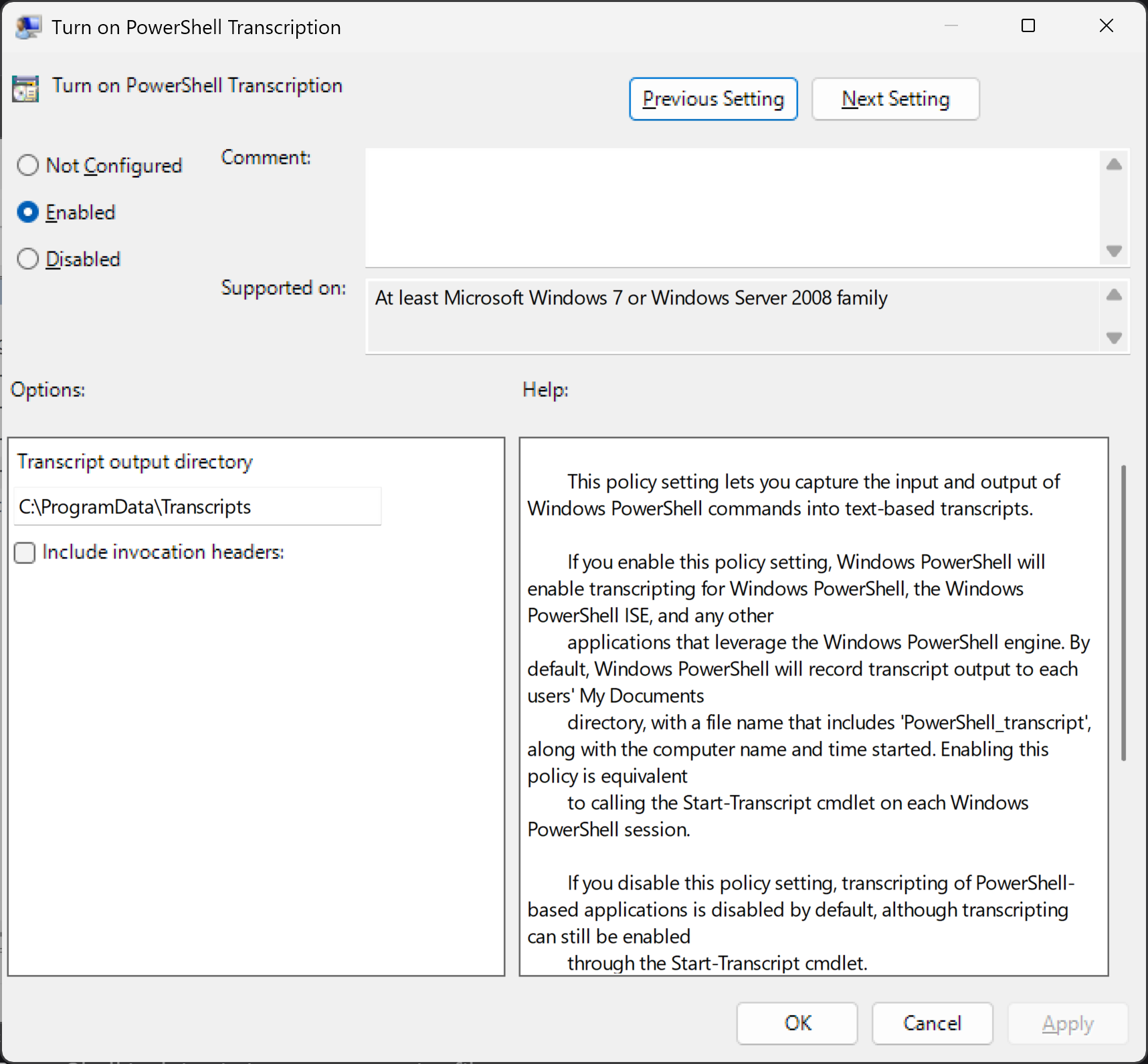
You'll need to enable PowerShell transcription on the device and see if we can get any insights from these logs at to what's going wrong. This can be done via gpedit.msc or in a GPO.