<#
.SYNOPSIS
PSAppDeployToolkit - This script performs the installation or uninstallation of an application(s).
.DESCRIPTION
- The script is provided as a template to perform an install, uninstall, or repair of an application(s).
- The script either performs an "Install", "Uninstall", or "Repair" deployment type.
- The install deployment type is broken down into 3 main sections/phases: Pre-Install, Install, and Post-Install.
The script imports the PSAppDeployToolkit module which contains the logic and functions required to install or uninstall an application.
PSAppDeployToolkit is licensed under the GNU LGPLv3 License - © 2025 PSAppDeployToolkit Team (Sean Lillis, Dan Cunningham, Muhammad Mashwani, Mitch Richters, Dan Gough).
This program is free software: you can redistribute it and/or modify it under the terms of the GNU Lesser General Public License as published by the
Free Software Foundation, either version 3 of the License, or any later version. This program is distributed in the hope that it will be useful, but
WITHOUT ANY WARRANTY; without even the implied warranty of MERCHANTABILITY or FITNESS FOR A PARTICULAR PURPOSE. See the GNU General Public License
for more details. You should have received a copy of the GNU Lesser General Public License along with this program. If not, see <http://www.gnu.org/licenses/>.
.PARAMETER DeploymentType
The type of deployment to perform.
.PARAMETER DeployMode
Specifies whether the installation should be run in Interactive (shows dialogs), Silent (no dialogs), or NonInteractive (dialogs without prompts) mode.
Silent mode is automatically set if it is detected that the process is not user interactive, no users are logged on, the device is in Autopilot mode, or there's specified processes to close that are currently running.
.PARAMETER SuppressRebootPassThru
Suppresses the 3010 return code (requires restart) from being passed back to the parent process (e.g. SCCM) if detected from an installation. If 3010 is passed back to SCCM, a reboot prompt will be triggered.
.PARAMETER TerminalServerMode
Changes to "user install mode" and back to "user execute mode" for installing/uninstalling applications for Remote Desktop Session Hosts/Citrix servers.
.PARAMETER DisableLogging
Disables logging to file for the script.
.EXAMPLE
powershell.exe -File Invoke-AppDeployToolkit.ps1
.EXAMPLE
powershell.exe -File Invoke-AppDeployToolkit.ps1 -DeployMode Silent
.EXAMPLE
powershell.exe -File Invoke-AppDeployToolkit.ps1 -DeploymentType Uninstall
.EXAMPLE
Invoke-AppDeployToolkit.exe -DeploymentType Install -DeployMode Silent
.INPUTS
None. You cannot pipe objects to this script.
.OUTPUTS
None. This script does not generate any output.
.NOTES
Toolkit Exit Code Ranges:
- 60000 - 68999: Reserved for built-in exit codes in Invoke-AppDeployToolkit.ps1, and Invoke-AppDeployToolkit.exe
- 69000 - 69999: Recommended for user customized exit codes in Invoke-AppDeployToolkit.ps1
- 70000 - 79999: Recommended for user customized exit codes in PSAppDeployToolkit.Extensions module.
.LINK
https://psappdeploytoolkit.com
#>
[CmdletBinding()]
param
(
[Parameter(Mandatory = $false)]
[ValidateSet('Install', 'Uninstall', 'Repair')]
[System.String]$DeploymentType,
[Parameter(Mandatory = $false)]
[ValidateSet('Interactive', 'Silent', 'NonInteractive')]
[System.String]$DeployMode,
[Parameter(Mandatory = $false)]
[System.Management.Automation.SwitchParameter]$SuppressRebootPassThru,
[Parameter(Mandatory = $false)]
[System.Management.Automation.SwitchParameter]$TerminalServerMode,
[Parameter(Mandatory = $false)]
[System.Management.Automation.SwitchParameter]$DisableLogging
)
##================================================
## MARK: Variables
##================================================
# Zero-Config MSI support is provided when "AppName" is null or empty.
# By setting the "AppName" property, Zero-Config MSI will be disabled.
$adtSession = @{
# App variables.
AppVendor = 'Test Vendor'
AppName = 'Test app'
AppVersion = '9.5'
AppArch = 'x86'
AppLang = 'EN'
AppRevision = '01'
AppSuccessExitCodes = @(0,1603)
AppRebootExitCodes = @(1641, 3010)
AppProcessesToClose = @('regedit', @{ Name = 'msconfig'; Description = 'System Configuration (msconfig)' },'POWERPNT', 'EXCEL', 'WINWORD', 'OUTLOOK')
AppScriptVersion = '1.0.0'
AppScriptDate = '2025-07-16'
AppScriptAuthor = 'Test Author'
RequireAdmin = $true
# Install Titles (Only set here to override defaults set by the toolkit).
InstallName = ''
InstallTitle = ''
# Script variables.
DeployAppScriptFriendlyName = $MyInvocation.MyCommand.Name
DeployAppScriptParameters = $PSBoundParameters
DeployAppScriptVersion = '4.1.0'
}
function Install-ADTDeployment
{
[CmdletBinding()]
param
(
)
##================================================
## MARK: Pre-Install
##================================================
$adtSession.InstallPhase = "Pre-$($adtSession.DeploymentType)"
## Show Welcome Message, close processes if specified, allow up to 3 deferrals, verify there is enough disk space to complete the install, and persist the prompt.
$saiwParams = @{
        AllowDeferCloseProcesses = $true
        DeferTimes = 3
        CheckDiskSpace = $true
        PersistPrompt = $true
        BlockExecution = $true
        PromptToSave = $true
    }
    if ($adtSession.AppProcessesToClose.Count -gt 0)
    {
        $saiwParams.Add('CloseProcesses', $adtSession.AppProcessesToClose)
    }
    Show-ADTInstallationWelcome @saiwParams
## Show Progress Message (with the default message).
Show-ADTInstallationProgress
## <Perform Pre-Installation tasks here>
##================================================
## MARK: Install
##================================================
$adtSession.InstallPhase = $adtSession.DeploymentType
## Handle Zero-Config MSI installations.
if ($adtSession.UseDefaultMsi)
{
$ExecuteDefaultMSISplat = @{ Action = $adtSession.DeploymentType; FilePath = $adtSession.DefaultMsiFile }
if ($adtSession.DefaultMstFile)
{
$ExecuteDefaultMSISplat.Add('Transforms', $adtSession.DefaultMstFile)
}
Start-ADTMsiProcess @ExecuteDefaultMSISplat
if ($adtSession.DefaultMspFiles)
{
$adtSession.DefaultMspFiles | Start-ADTMsiProcess -Action Patch
}
}
## <Perform Installation tasks here>
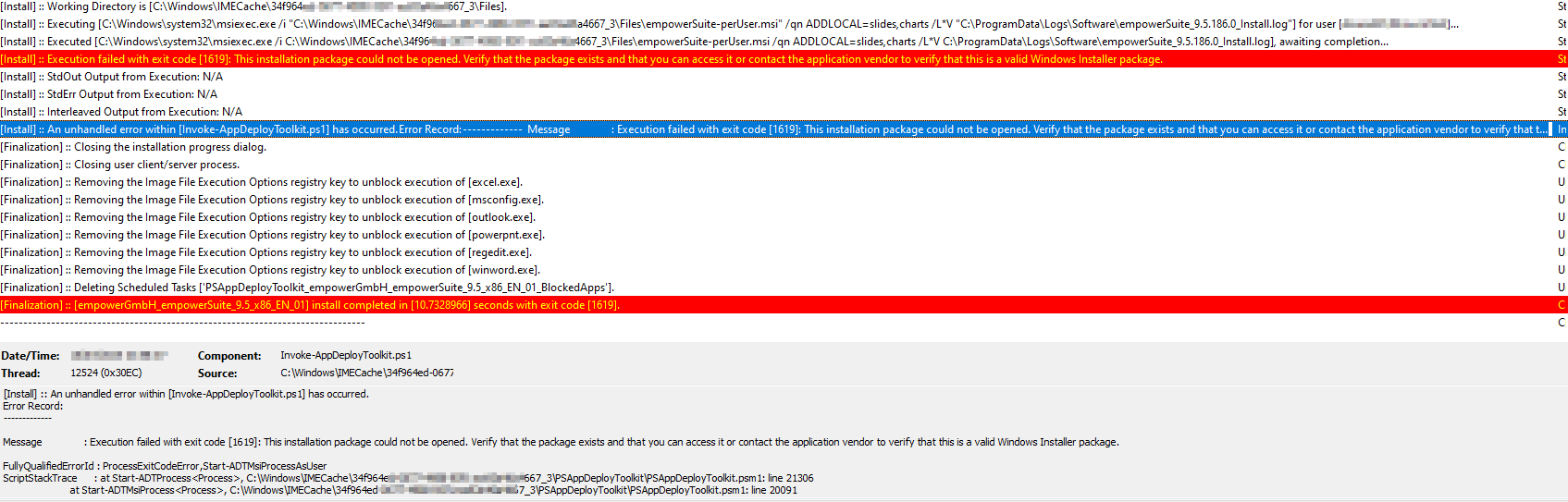
Start-ADTMsiProcessAsUser -Action 'Install' -FilePath "empowerSuite-perUser.msi" -ArgumentList '/qn ADDLOCAL=slides,charts'
##================================================
## MARK: Post-Install
##================================================
$adtSession.InstallPhase = "Post-$($adtSession.DeploymentType)"
## <Perform Post-Installation tasks here>
## Display a message at the end of the install.
if (!$adtSession.UseDefaultMsi)
{
#Show-ADTInstallationPrompt -Message 'You can customize text to appear at the end of an install or remove it completely for unattended installations.' -ButtonRightText 'OK' -Icon Information -NoWait
Show-ADTBalloonTip -BalloonTipText 'empowerSuite succssfully installed!' -BalloonTipIcon 'Info'
}
}
function Uninstall-ADTDeployment
{
[CmdletBinding()]
param
(
)
##================================================
## MARK: Pre-Uninstall
##================================================
$adtSession.InstallPhase = "Pre-$($adtSession.DeploymentType)"
## If there are processes to close, show Welcome Message with a 60 second countdown before automatically closing.
if ($adtSession.AppProcessesToClose.Count -gt 0)
{
Show-ADTInstallationWelcome -CloseProcesses $adtSession.AppProcessesToClose -BlockExecution -AllowDeferCloseProcesses -PromptToSave
}
## Show Progress Message (with the default message).
Show-ADTInstallationProgress
## <Perform Pre-Uninstallation tasks here>
##================================================
## MARK: Uninstall
##================================================
$adtSession.InstallPhase = $adtSession.DeploymentType
## Handle Zero-Config MSI uninstallations.
if ($adtSession.UseDefaultMsi)
{
$ExecuteDefaultMSISplat = @{ Action = $adtSession.DeploymentType; FilePath = $adtSession.DefaultMsiFile }
if ($adtSession.DefaultMstFile)
{
$ExecuteDefaultMSISplat.Add('Transforms', $adtSession.DefaultMstFile)
}
Start-ADTMsiProcess @ExecuteDefaultMSISplat
}
## <Perform Uninstallation tasks here>
Start-ADTProcess -FilePath "$($adtSession.DirFiles)\Removal Tool\empowerRemovalTool.CLI.exe"
##================================================
## MARK: Post-Uninstallation
##================================================
$adtSession.InstallPhase = "Post-$($adtSession.DeploymentType)"
## <Perform Post-Uninstallation tasks here>
Show-ADTBalloonTip -BalloonTipText 'empowerSuite succssfully Un-installed!' -BalloonTipIcon 'Info'
}
function Repair-ADTDeployment
{
[CmdletBinding()]
param
(
)
##================================================
## MARK: Pre-Repair
##================================================
$adtSession.InstallPhase = "Pre-$($adtSession.DeploymentType)"
## If there are processes to close, show Welcome Message with a 60 second countdown before automatically closing.
if ($adtSession.AppProcessesToClose.Count -gt 0)
{
Show-ADTInstallationWelcome -CloseProcesses $adtSession.AppProcessesToClose -CloseProcessesCountdown 60
}
## Show Progress Message (with the default message).
Show-ADTInstallationProgress
## <Perform Pre-Repair tasks here>
##================================================
## MARK: Repair
##================================================
$adtSession.InstallPhase = $adtSession.DeploymentType
## Handle Zero-Config MSI repairs.
if ($adtSession.UseDefaultMsi)
{
$ExecuteDefaultMSISplat = @{ Action = $adtSession.DeploymentType; FilePath = $adtSession.DefaultMsiFile }
if ($adtSession.DefaultMstFile)
{
$ExecuteDefaultMSISplat.Add('Transforms', $adtSession.DefaultMstFile)
}
Start-ADTMsiProcess @ExecuteDefaultMSISplat
}
## <Perform Repair tasks here>
##================================================
## MARK: Post-Repair
##================================================
$adtSession.InstallPhase = "Post-$($adtSession.DeploymentType)"
## <Perform Post-Repair tasks here>
}
##================================================
## MARK: Initialization
##================================================
# Set strict error handling across entire operation.
$ErrorActionPreference = [System.Management.Automation.ActionPreference]::Stop
$ProgressPreference = [System.Management.Automation.ActionPreference]::SilentlyContinue
Set-StrictMode -Version 1
# Import the module and instantiate a new session.
try
{
# Import the module locally if available, otherwise try to find it from PSModulePath.
if (Test-Path -LiteralPath "$PSScriptRoot\PSAppDeployToolkit\PSAppDeployToolkit.psd1" -PathType Leaf)
{
Get-ChildItem -LiteralPath $PSScriptRoot\PSAppDeployToolkit -Recurse -File | Unblock-File -ErrorAction Ignore
Import-Module -FullyQualifiedName @{ ModuleName = "$PSScriptRoot\PSAppDeployToolkit\PSAppDeployToolkit.psd1"; Guid = '8c3c366b-8606-4576-9f2d-4051144f7ca2'; ModuleVersion = '4.1.0' } -Force
}
else
{
Import-Module -FullyQualifiedName @{ ModuleName = 'PSAppDeployToolkit'; Guid = '8c3c366b-8606-4576-9f2d-4051144f7ca2'; ModuleVersion = '4.1.0' } -Force
}
# Open a new deployment session, replacing $adtSession with a DeploymentSession.
$iadtParams = Get-ADTBoundParametersAndDefaultValues -Invocation $MyInvocation
$adtSession = Remove-ADTHashtableNullOrEmptyValues -Hashtable $adtSession
$adtSession = Open-ADTSession @adtSession @iadtParams -PassThru
}
catch
{
$Host.UI.WriteErrorLine((Out-String -InputObject $_ -Width ([System.Int32]::MaxValue)))
exit 60008
}
##================================================
## MARK: Invocation
##================================================
# Commence the actual deployment operation.
try
{
# Import any found extensions before proceeding with the deployment.
Get-ChildItem -LiteralPath $PSScriptRoot -Directory | & {
process
{
if ($_.Name -match 'PSAppDeployToolkit\..+$')
{
Get-ChildItem -LiteralPath $_.FullName -Recurse -File | Unblock-File -ErrorAction Ignore
Import-Module -Name $_.FullName -Force
}
}
}
# Invoke the deployment and close out the session.
& "$($adtSession.DeploymentType)-ADTDeployment"
Close-ADTSession
}
catch
{
# An unhandled error has been caught.
$mainErrorMessage = "An unhandled error within [$($MyInvocation.MyCommand.Name)] has occurred.`n$(Resolve-ADTErrorRecord -ErrorRecord $_)"
Write-ADTLogEntry -Message $mainErrorMessage -Severity 3
## Error details hidden from the user by default. Show a simple dialog with full stack trace:
# Show-ADTDialogBox -Text $mainErrorMessage -Icon Stop -NoWait
## Or, a themed dialog with basic error message:
# Show-ADTInstallationPrompt -Message "$($adtSession.DeploymentType) failed at line $($_.InvocationInfo.ScriptLineNumber), char $($_.InvocationInfo.OffsetInLine):`n$($_.InvocationInfo.Line.Trim())`n`nMessage:`n$($_.Exception.Message)" -MessageAlignment Left -ButtonRightText OK -Icon Error -NoWait
Close-ADTSession -ExitCode 60001
}