If you're experiencing issues with the CloseProcess countdown in PSADT 4.0.6, you can switch to Classic UI for the countdown while keeping the rest of the UI in Fluent mode by following these steps:
Steps:
-
Edit the file:
OpenPSAppDeployToolkit\PSAppDeployToolkit.psm1. -
Modify the process block:
Add the following code after line 18586, before the try block, and inside the process block:$adtConfig = & $Script:CommandTable.'Get-ADTConfig' $adtConfig.UI.DialogStyle = "Classic"After modification, the code should look like this:
process
{
    $adtConfig = & $Script:CommandTable.'Get-ADTConfig'
    $adtConfig.UI.DialogStyle = "Classic"
    try

-
Restore Fluent UI after the countdown:
Add the following line at the end of the process block (after line 18950), after thecatchblock:$adtConfig.UI.DialogStyle = "Fluent"Final code should look like this:
catch
{
    & $Script:CommandTable.'Invoke-ADTFunctionErrorHandler' -Cmdlet $PSCmdlet -SessionState $ExecutionContext.SessionState -ErrorRecord $_
}
$adtConfig.UI.DialogStyle = "Fluent"
}

end
{
    & $Script:CommandTable.'Complete-ADTFunction' -Cmdlet $PSCmdlet
}

If you now use this code, it will show CloseProcess in Classic UI.
Show-ADTInstallationWelcome -CloseProcesses vlc -PersistPrompt -NoMinimizeWindows -CloseProcessesCountdown 60

Rest of the prompts will be in Fluent UI.
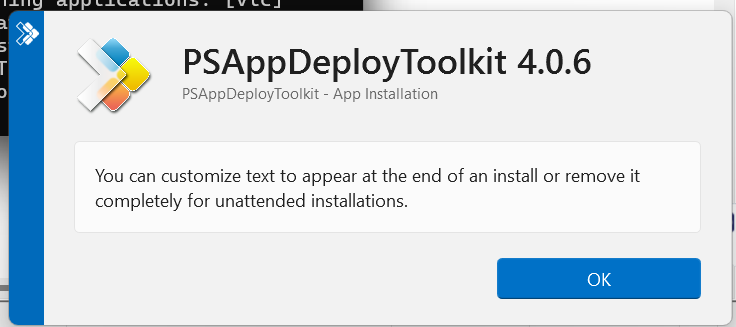
This ensures that only the CloseProcess countdown uses the Classic UI, while the rest of the dialogs remain in Fluent UI.