There are a number of questions your post raises...
You appear to state something does not work when it is deployed with SCCM or Intune
Can you explain 'what' doesn't work?
Can you explain how you are doing your local test, this could include:
Which user are you using?
Is this user an Admin?
Are you using PSEXEC to launch as SYSTEM?
How are you deploying this from Intune / SCCM? (In the Users context or as SYSTEM?)
What is your SCCM or Intune deployment install command line?
It should be something like this:
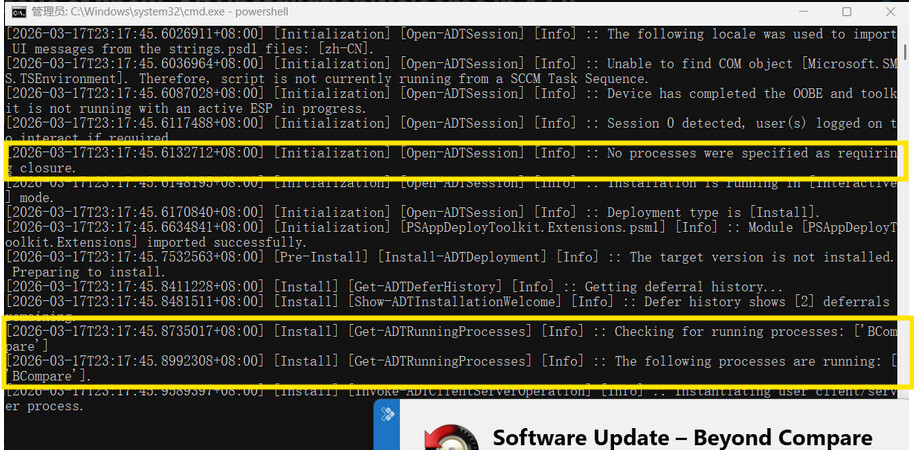
By the looks of things your Invoke-AppDeployToolkit.ps1 script may have some settings defined incorrectly
As these two highlighted sections should agree
Please can you reply with the code you have within the $adtsession = @ { (approx. line 89) and the closing } (approx line 113) and separately the contents of the Pre-Install and Install sections
Starting:
I need this content as below, but some UI will be lost with SYSTEM account.e.g. process detection, and “Dear User” will become The original message....
In the $adtSession = @{ variables you don't have any app Processes to close defined
I'd suggest you either have this: AppProcessesToClose = @('bcompare')
or more elegant to the user: AppProcessesToClose = @(@{ Name = 'bcompare'; Description = 'Scooter Software Beyond Compare'})
Then in the Pre-Install section modify with this:
 ## Show Welcome Message, close Beyond Compare, allow up to 3 deferrals, verify there is enough disk space to complete the install, persist the prompt and Block Excel being relaunched until complete.
    $saiwParams = @{
        AllowDeferCloseProcesses = $true
        DeferTimes = 3
        CheckDiskSpace = $true
        PersistPrompt = $true
        # BlockExecution = $true # Optional - Allows you to block the launch of Beyond Compare during the install
    }
    if ($adtSession.AppProcessesToClose.Count -gt 0)
    {
        $saiwParams.Add('CloseProcesses', $adtSession.AppProcessesToClose)
    }
    Show-ADTInstallationWelcome @saiwParams

    ## Show Progress Message (with the default message).
    Show-ADTInstallationProgress
It looks like you are reinventing the wheel.
By using PSADT's native process detection, this whole section is not required:
 #Check if there are any processes of Graphviz
    $targetProcesses = @(
        "BCompare"
    )

    # target processes are currently running or not
    $runningProcesses = Get-Process -Name $targetProcesses -ErrorAction SilentlyContinue
    if ($runningProcesses) {
        #Prompt the user to close the software
        Show-ADTInstallationWelcome -CloseProcesses @{ Name = 'BCompare'} -BlockExecution -AllowDefer -DeferTimes 999 -CloseProcessesCountdown 600 -CustomText
        Show-ADTInstallationProgress
and this (at the end of your code block) is not required either:
You then need to move some of the lines in your Install Section into the Pre-Install section
I notice you are probably over complicating this as you have built in some version detection into your script.
What deployment platform are you using to push this to your users?
If using Intune or SCCM the detection should occur before (and after) the install process, so if the device already has the latest version, the install is not triggered making the detection within your script unnecessary
One suggestion I'd make is have a look at some of the PSADT v4 install examples on Silent Install HQ as they give some good examples of how to achieve some of what you are aiming at.
this one for example:
N.B. In the above example the OS Architecture detection is not strictly required and neither is the Uninstall of the earlier version prior to the install, but hopefully this gives you some guidance
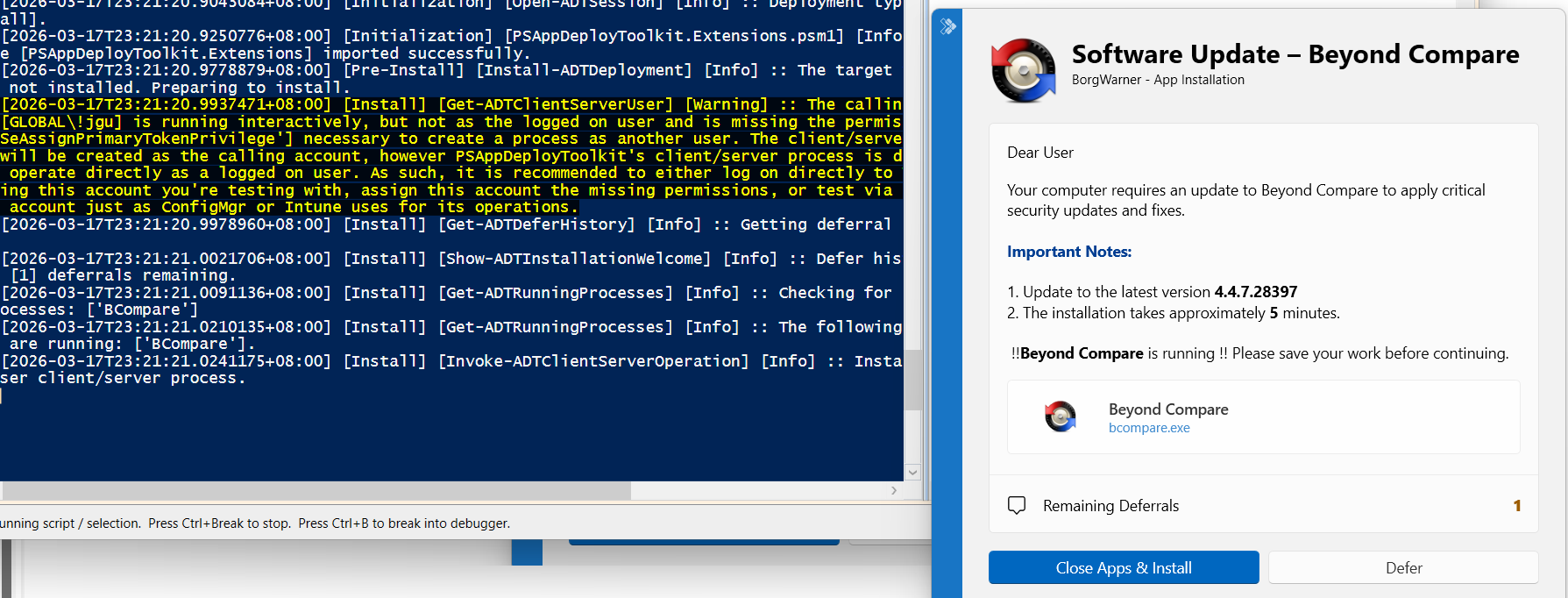
What I imagine is happening is that Beyond Compare is not running as the user that our client/server process is running as. I'll frame the scenario.
You're logged onto your Windows client using a daily driver account.
You've opened Beyond Compare using an alternative set of credentials.
You've started our product via SYSTEM, which runs our UI via your daily driver account.
Daily driver account is not administrative, therefore cannot see other user's processes.
Does any of this sound like what's going on? If so, it's expected behaviour as users don't have authority to see other people's processes, yet alone close them.
You reminded me that indeed when I was re-running the test code, I would run the BCompare using another administrator account, and then problems would arise.